

Smartwatch Software Update Checklist: Before, During, and After
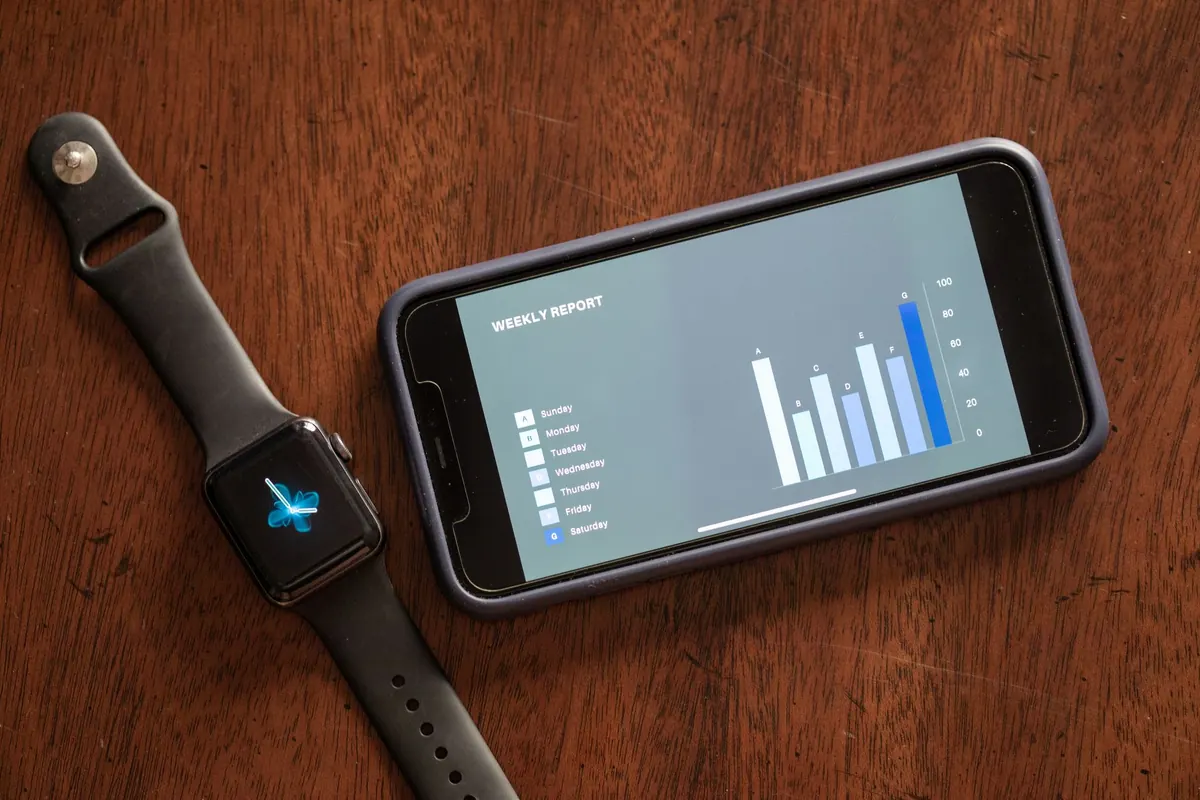
The notification always seems to land at the worst moment: you are halfway out the door, the watch is at 19 percent, and a small banner announces that new software is ready. Tapping Install right then is how people end up staring at a progress ring that refuses to finish. Updates are worth taking — they patch security holes, smooth out battery quirks and deliver features your watch was sold on. They just go far better with twenty minutes of preparation than two seconds of impatience.
Before You Tap Install
Almost every failed update comes down to one of three things: power, storage or connection. Fix those first and the rest is waiting.
- Charge the watch, then leave it on the charger. Most platforms ask for somewhere between 30 and 50 percent battery before they will start, but that is a floor, not a target. A long install can chew through charge, so top it up and keep it docked for the whole process.
- Charge the phone too, and keep it nearby. On Apple Watch and most Wear OS models, the phone brokers the download. A phone that dies mid-transfer can leave the watch in an odd state.
- Clear some space. Watches have tiny storage. If the installer complains, delete downloaded music, podcasts or offline playlists from the watch itself rather than from your phone — those files are the usual culprits.
- Confirm the connection. Both devices on the same Wi-Fi network, Bluetooth switched on, and no VPN weirdness on the phone. Updates measured in gigabytes over a phone hotspot are slow enough to invite trouble.
- Write down what you have customised. A quick photo of your watch face, complications and alarm list takes ten seconds and saves a lot of guessing later.
Where Your Data Lives During an Update
This is the part people worry about most and understand least. Your watch is not really a standalone computer with its own full backup. Health and fitness history, activity rings, workout records and most settings sync to the phone and, from there, to the cloud account tied to your platform — iCloud for Apple Watch, your Google account for Wear OS, Garmin Connect, Fitbit or Zepp for those ecosystems.
The practical version
- Make sure the phone has synced recently with the watch before you start. Open the companion app and let it settle.
- Confirm cloud sync is on and you are signed in, and that you know your account password. This is the day you do not want to guess it.
- Do not unpair the watch as a "clean slate" before installing anything. Unpairing wipes the watch and, on cellular models, can mean re-activating the data plan with your carrier.
- If you keep any notes, medication reminders or lists on the watch, check whether they live in a phone app. If they do not, copy them somewhere safe first.
During the Install: Hands Off
Once the download begins, the best thing you can do is nothing. Put the watch down, leave it on the charger and resist the urge to swipe through menus to see how far along it is.
Avoid these in particular: force-restarting the watch when the progress bar seems frozen, unpairing it because the phone lost connection, or starting the update at 11pm the night before you need a 6am alarm. Some stages genuinely sit still for several minutes. That is normal.
If your watch handles medication reminders, fall detection or heart-rhythm alerts, plan the update for a window when you do not need those alerts. Consumer wearables are useful tools, not medical devices — anything health-related that matters to you should be discussed with a clinician rather than trusted to a gadget mid-reboot.
The First Hour After
When the watch restarts, do not just check the clock and move on. Take five minutes to confirm the basics.
- Check the version number. Apple Watch: Settings, General, About. Wear OS: Settings, System, About. Confirm the build matches what was offered; a stalled install can quietly leave you on the old version.
- Re-test the essentials. Alarms, timers, notifications, Bluetooth earbuds, watch-face complications.
- Check contactless payments. Major updates sometimes require cards to be re-verified in the wallet app.
- Re-grant permissions. Notification access, location, microphone and background activity permissions occasionally reset.
- Restart once more. A second clean boot after the update finishes clears a surprising number of small glitches.
The Next Few Days: Battery and Sensors
Do not judge battery life on day one. After a significant update, the watch reindexes data, re-syncs health records and re-learns some of your patterns, which can double the usual drain for a day or two. Give it three full charge cycles before deciding the update ruined your battery. If drain is still bad after that, a restart plus a check of which apps are refreshing in the background solves most cases.
Also re-test the sensors you actually use: sleep tracking, outdoor walk distance, heart-rate zones during a workout, GPS lock on a run. Step accuracy and distance calibration sometimes drift after a firmware change and settle back within a few sessions. If you wear the watch on the other wrist, confirm the wrist setting carried over.
If the Update Stalls, Fails or Feels Wrong
Work up the ladder rather than jumping to a factory reset:
- Toggle the connection. Turn Wi-Fi off and on again on both devices, then restart both.
- Free more storage. Deleting another album or playlist often unblocks a download stuck at a high percentage.
- Retry on the charger. Some installs refuse to proceed below a charge threshold without telling you clearly.
- Look at your platform's support page for your exact model before assuming the worst — some updates are paused or pulled for specific versions.
- As a last resort, unpair and re-pair, then restore from your phone or cloud data. Only after that consider a factory reset.
One more thing worth checking while you are in the settings: whether your model still receives security patches. Watches do reach the end of their update life, and a device that has not seen an update in a year or more is worth replacing for that reason alone.
Make It a Twenty-Minute Habit
Put the watch on its charger when you sit down for dinner, start the update, and verify it afterwards with a five-minute check. Do that once a month or whenever a notification appears, and you will rarely notice the process at all. Back up first, keep it powered and connected during, and confirm your alarms and payments afterwards. The people who never have update horror stories are not luckier than you — they simply read the prompt before tapping it.
Photo: RDNE Stock project / Pexels